
OVERVIEW
- Always use your Georgiadogs.com account transfer on Georgiadogs.com/Tickets or the Georgia Bulldogs App.
- Sharing logins, screenshots, emails, or texts with ticket links will result in disabled passes and will NOT grant entry on game day.
- Always utilize the transfer feature through your account to successfully transfer tickets to another individual.
- Always use SeatGeek to resell your tickets if you are unable to attend an event. Apple Account Binding does not impact SeatGeek tickets at this time.
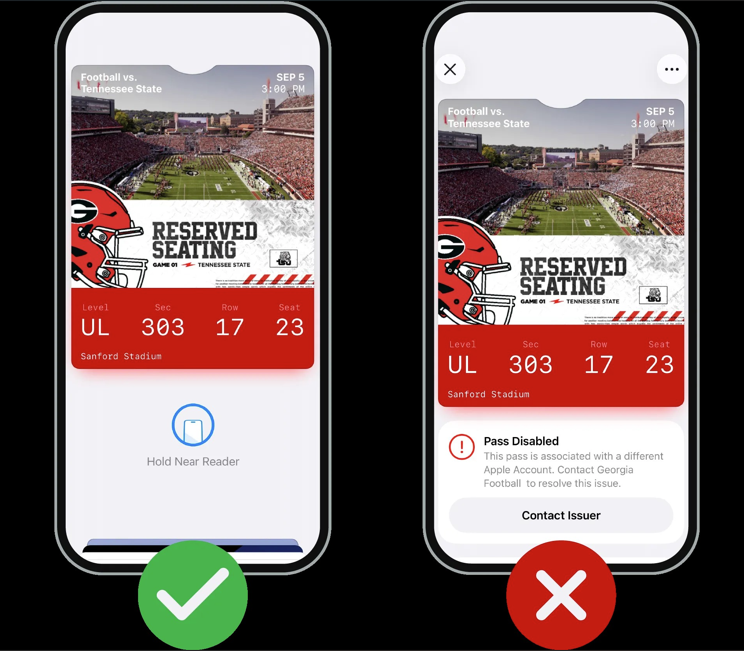
WHAT IS APPLE ACCOUNT BINDING?
Apple Account Binding adds security to your mobile ticket by binding them to your Apple ID. This prevents unauthorized sharing while keeping the same easy entry experience you’re used to.
IDENTIFY PRIMARY USER
SOLO
- You’re the Account Primary iPhone!
- Purchase and add your ticket directly to your Apple Wallet.
- Transfer or sell your ticket through your Georgia Bulldogs account.
DUOS
- The Account Primary iPhone purchases and adds the first ticket to their Apple Wallet.
- Transfer the ticket to your partner if you are not entering the event together.
- Do not share logins (even if you share everything else).
FAMILIES
- Designate one tech-savvy member as the Account Primary iPhone.
- The Account Primary iPhone adds the first ticket to their Apple Wallet.
- The Account Primary iPhone transfers tickets to anyone who will enter the event separately via My Account in their Georgia Bulldogs account.
- Each member who wants a ticket on their own device must have their own Georgia Bulldogs account to accept transferred tickets from the Account Primary iPhone.
FIRST TIME SETUP
- The first person to add a single-event ticket (All-in-One excluded) from their Georgia Bulldogs account to Apple Wallet permanently binds that account to their Apple account.
- When you add your first mobile single-event ticket to your Apple Wallet after enabling account binding, Apple will ask you to verify your Apple ID (using Face ID, Touch ID, or your password). This creates a secure connection between your UGA tickets and your iCloud account.
- All future tickets from that account must either go to the same Apple Wallet or be officially transferred.
SHARING TICKETS
- Always use your My Account transfer on georgiadogs.com/myaccount to share tickets with family and friends.
- Sharing logins, screenshots, emails, or texts with ticket links will result in disabled passes. Everyone who needs a ticket on their Apple device needs to set up a Georgiadogs ticket account. Once they have an account, they need to log in and accept the transfer, then add it to their own Apple Wallet.
ONGOING EXPERIENCE
Once set up, future UGA tickets are automatically bound to your Apple account. You will not need to authenticate again unless you're using a different device or there's a security concern.
VISUAL INDICATORS
If your ticket shows “pass activating” or “disabled pass”, please contact The Georgia Bulldog Club at 706-542-1231, ext. 2.
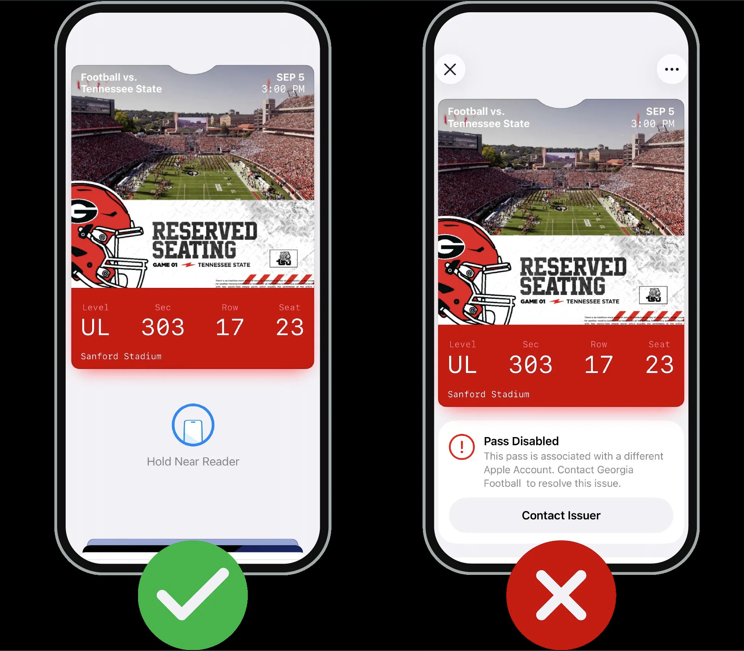
Once you have received your tickets, downloaded them to your Apple Wallet, and bound them correctly to your Apple Account, look for the "Hold Near Reader" icon on your pass in your Apple Wallet. This signifies that your tickets are correctly linked and ready to scan.
If you do not see this icon:
- Check that you are signed in to the same Apple account used when first adding the tickets.
- Try removing and re-adding the ticket from your Apple Wallet.
- Ensure you're connected to Wi-Fi or cellular data.
- If problems persist, contact The Georgia Bulldog Club at 706-542-1231, ext. 2.
TROUBLESHOOTING TIPS
Unable to add to Wallet
If you're getting a message that you're unable to add the ticket to your Apple Wallet, make sure you're first connected to the internet with a cellular network or stable Wi-Fi. If it's still presenting an issue, consider:
- Updating your iOS
- Restarting your phone
- Signing out and back in to your Apple ID
- Ensuring Face ID and passcode are set up
- Ensuring you're signed into iCloud
- Trying on a different device
"Safari not supported" messaging
If you're receiving a "Safari not supported" error message, try opening the link differently by copying and pasting it directly into Safari. If that does not work, consider sending it to a desktop first or checking the network restrictions.
"Unsupported browser"
If you're receiving an "Unsupported browser" message, make sure you're opening the link on Safari instead of another browser, like Chrome. This should resolve the problem!
Apply Pay URL
When you downloaded your ticket, it may have been saved as a card to Apple Pay as opposed to a pass or ticket. To fix this, go back to your account or ticket download email and re-add it to your Wallet. You may also need to confirm that your Apple Wallet setup is complete.
FAQ
Do I need to do anything differently?
For your first ticket download this season, you'll need to verify your Apple account once. After that, everything will work automatically.
What if I am having trouble?
Make sure you're signed into the same Apple account you used when first adding tickets to your wallet. If problems continue, please contact The Georgia Bulldog Club at 706-542-1231, ext. 2.
Can I still share tickets?
Of course! You just need to use the official transfer feature on your GeorgiaDogs.com account. Do not forward emails with ticket links or share passwords.
I don't have an iPhone - does Apple Account Binding affect me?
At this time, it does not. These changes only impact Apple products for now.
GO DAWGS!